Best AI Image Generator for Creators: Design.com vs Midjourney vs Adobe Firefly vs Canva

AI image generators have changed how creators approach visual content. Instead of searching through stock libraries or creating every image from scratch, you can describe an idea and generate a visual in seconds.
But not every AI image generator works the same way.
Some platforms focus heavily on artistic experimentation. Others are built around professional editing or complete design workflows. For creators, the right choice often depends less on which tool has the most features and more on what you want to do with the image after it has been generated.
In this comparison, we look at Design.com, Midjourney, Adobe Firefly, and Canva across image generation, creative control, ease of use, editing, and overall workflow.
How We Compared These AI Image Generators
We looked at the features that matter most when creating images for real projects:
- Image quality: How detailed, polished, and usable the generated images are.
- Ease of use: How quickly you can go from an idea to an image.
- Creative control: How much you can influence the subject, style, composition, and other details.
- Editing: What you can do after generating an image.
- Speed: How quickly you can experiment with different ideas.
- Use cases: Whether the tool works well for social media, websites, marketing, presentations, artwork, and other projects.
- Workflow: What happens after you create the image?
- Commercial use: The licensing and usage considerations creators should understand.
The goal isn’t to find one tool that works for everyone. Each platform has a different approach to AI image generation.
AI Image Generators at a Glance
Here’s a quick comparison between these tools:
| Tool | Best suited for | Ease of use | Creative control | Broader design workflow | Cost |
|---|---|---|---|---|---|
| Design.com | Business, marketing, and content visuals | Very easy | Very high | Extensive | Freemium |
| Midjourney | AI art and visual experimentation | Moderate | Very high | More focused on image creation | Paid |
| Adobe Firefly | Professional creative workflows | Moderate | High | Extensive | Free and paid options |
| Canva | Social media and everyday content | Very easy | High | Extensive | Free and paid options |
And now, here’s a closer look at each tool:
Design.com AI Image Generator
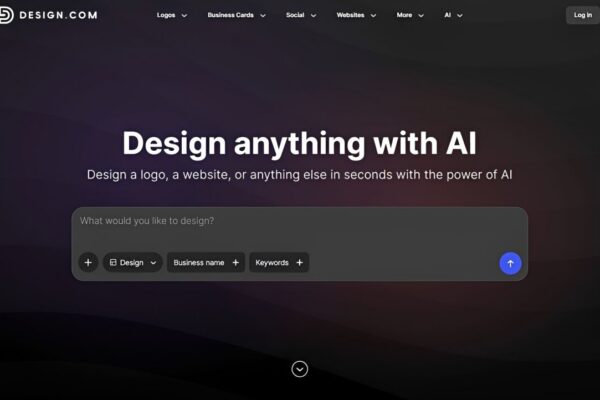
Design.com’s AI Image Generator is designed to make the process of turning an idea into a visual straightforward.
You don’t need to start with complicated settings or know how to write technical prompts. You can describe what you want using everyday language, including details about the subject, setting, mood, colors, lighting, composition, and style. Design.com then generates multiple visual options based on your description.
Generate Images From Simple Prompt
The process starts with a description.
For example, you could ask for:
A modern coffee shop in Tokyo at night, warm interior lighting, large windows, people working on laptops, cinematic photography.
The more useful details you provide, the more direction you give the generator.
You can describe the subject, background, visual style, mood, lighting, colors, and composition without needing a complicated prompt format.
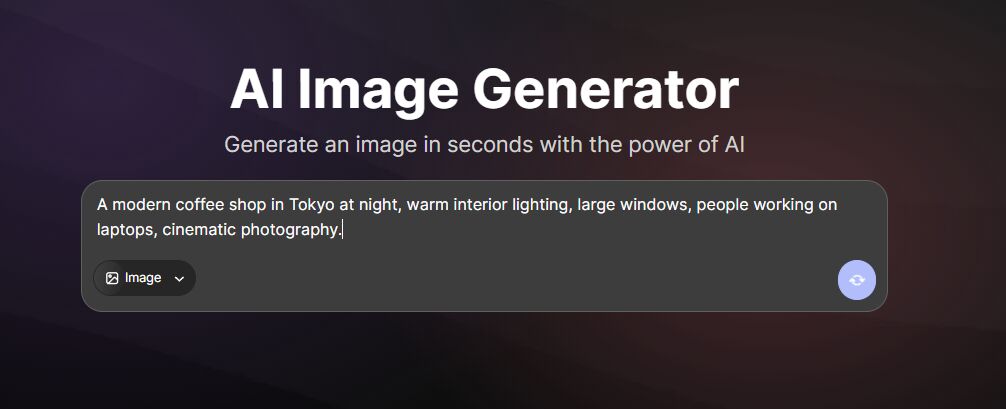
And here’s the result we got:
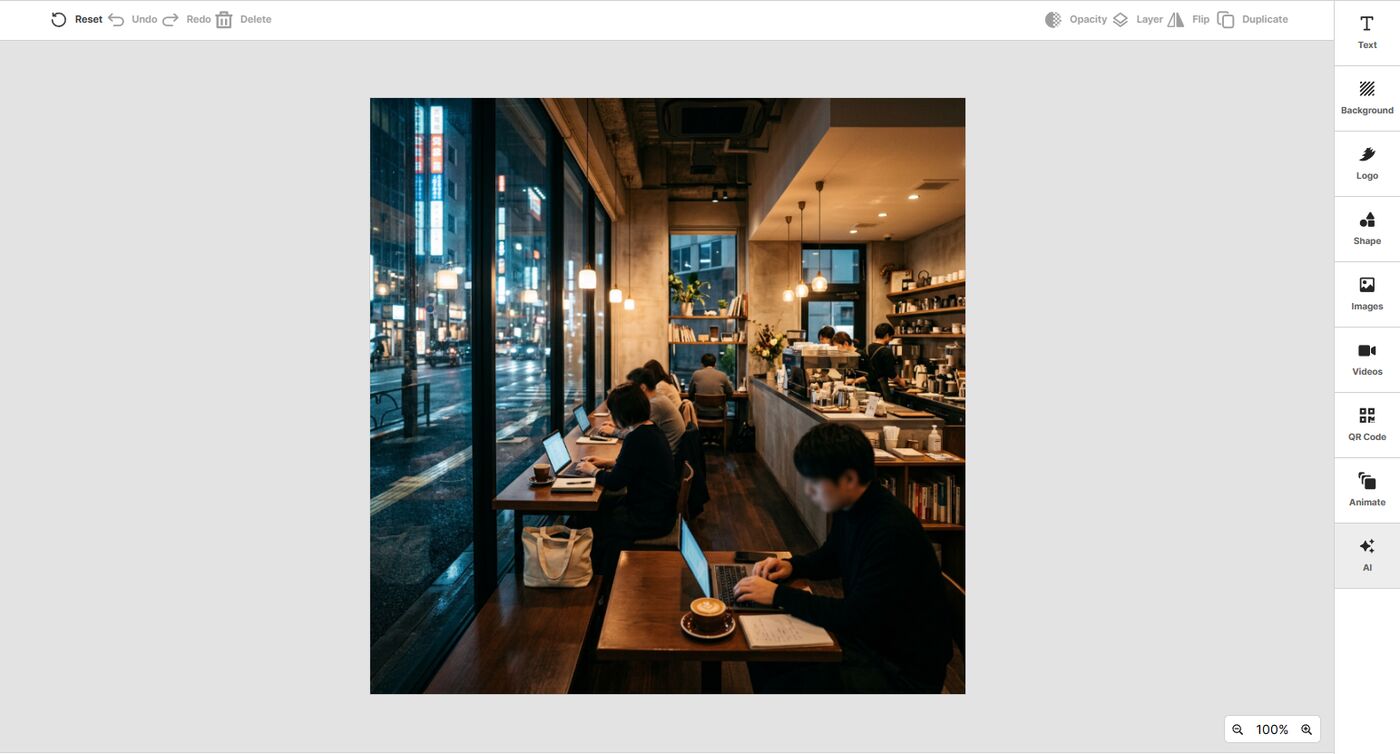
The tool produced multiple interpretations of the idea, giving us several directions to choose from rather than requiring us to settle on the first result.
This makes the process useful for both brainstorming and creating a final visual.
If the result isn’t quite right, you can change the description and generate another set of images.
Customize the Image You Generate
One useful feature of an AI image generator is the ability to keep refining an idea until it fits your brand personality.
Instead of searching for another stock image when something is slightly wrong, you can change your prompt and try again.
For example, we could change our coffee shop prompt from:
“A modern coffee shop in Tokyo at night…”
to:
“A minimalist Japanese coffee shop in Tokyo at night, warm wood interiors, soft amber lighting, quiet atmosphere, editorial photography.”
That gives the AI more information about the visual direction we want.
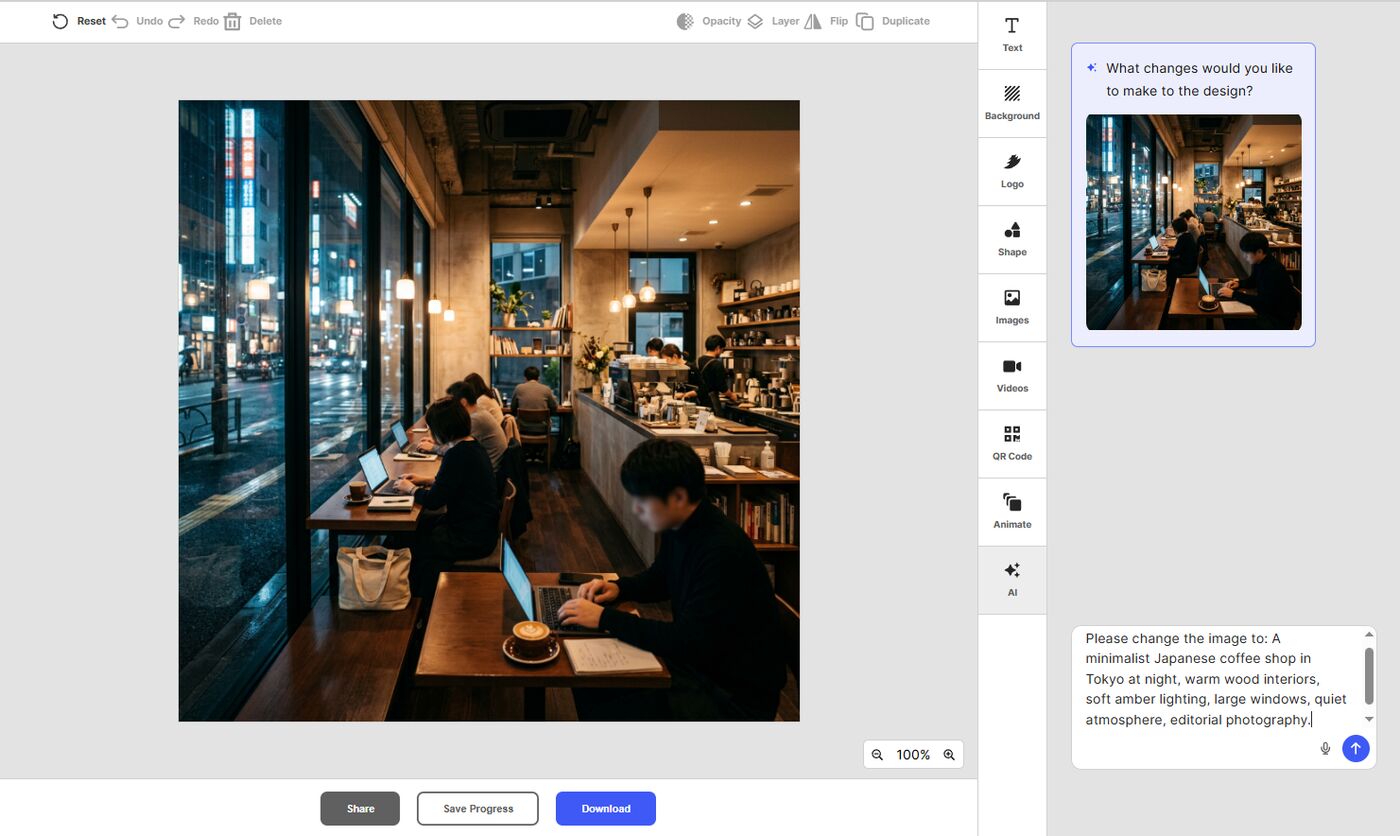
And we got the result that we were looking for!
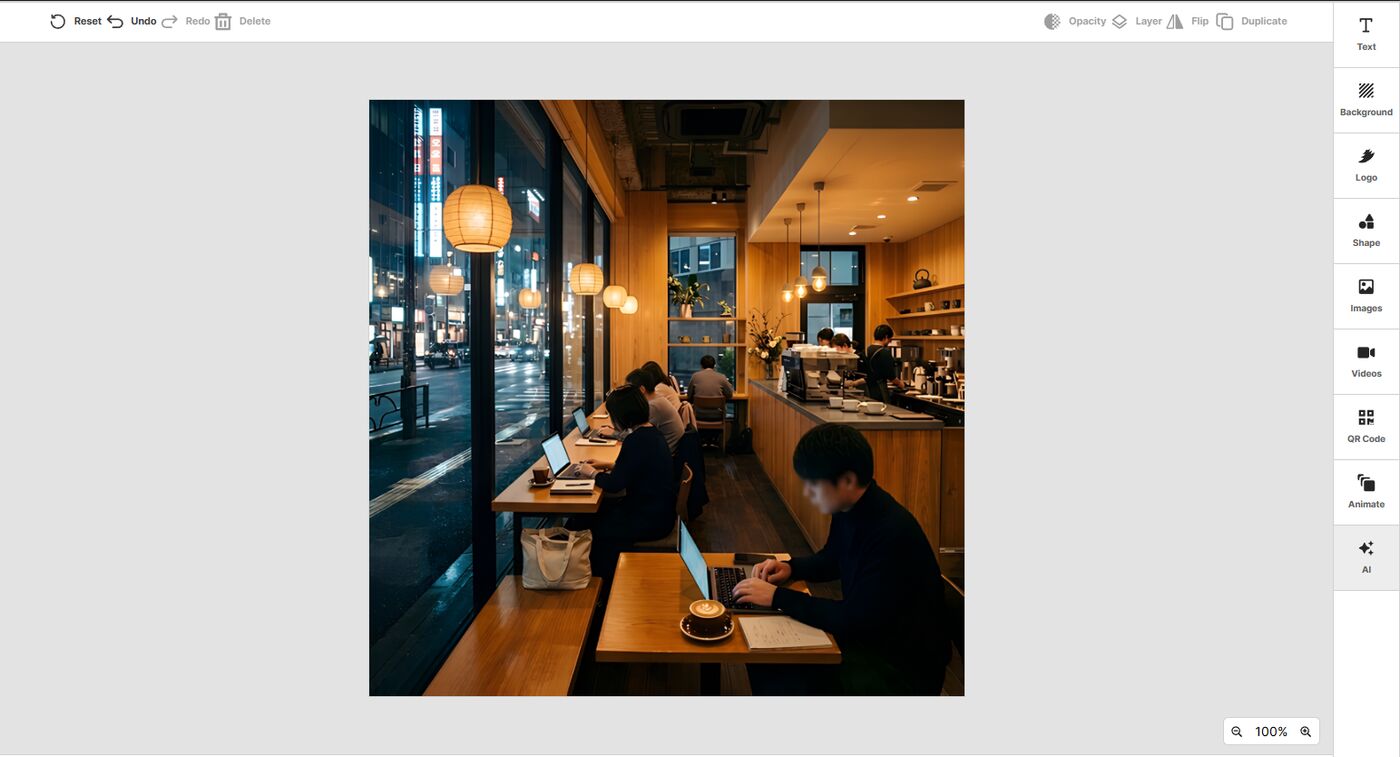
Design.com recommends adding details such as the subject, setting, style, lighting, mood, colors, and composition to achieve more specific results.
Create Images for Different Types of Content
The usefulness of an AI-generated image depends on what you plan to do with it.
Design.com positions its AI Image Generator for a wide range of projects, including websites, social media, presentations, advertising, marketing materials, and creative projects.
For example, a creator could generate:
- A hero image for a website
- A social media background
- A product concept
- A presentation visual
- A blog image
- An advertising concept
- An illustration
- A marketing campaign visual
From AI Image to Finished Design
This is where Design.com takes a different approach from a standalone image-generation tool.
The generated image doesn’t have to be the final step in the workflow.
Once you have a visual you like, you can use Design.com’s broader collection of design tools, including its logo maker, to create social content, marketing materials, website graphics, presentations, and other designs.
That can be useful for creators who don’t simply need an image. They need an image that becomes part of something else.
Who Is Design.com Best For?
Design.com is particularly well-suited to creators, marketers, entrepreneurs, and businesses that want a straightforward way to generate visuals and use them in broader design projects.
Its workflow can be summarized simply:
Describe → Generate → Choose → Refine → Design
And because the AI Image Generator is completely free, it’s easy to experiment with different ideas and create visuals whenever you need them.
Midjourney
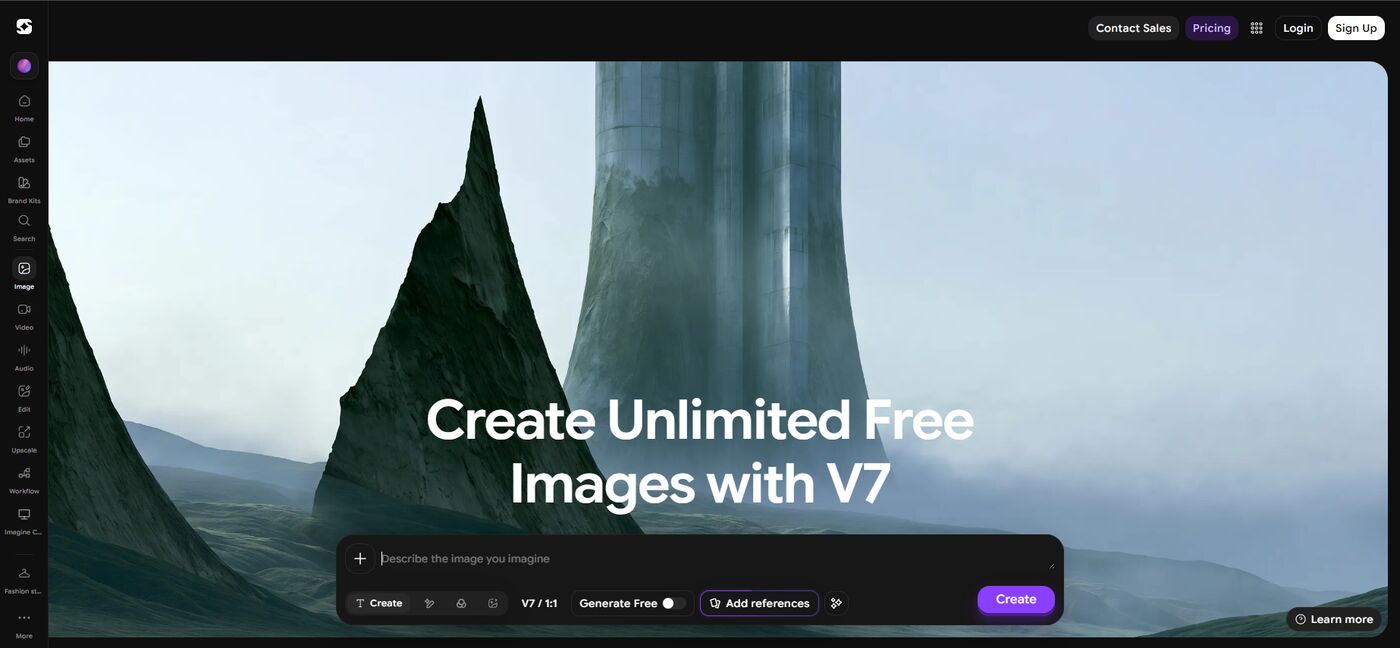
Midjourney has built its reputation around AI-generated imagery and creative experimentation.
Its current web-based Create experience lets users enter prompts, upload images, adjust settings, and experiment with controls such as stylization, weirdness, variety, aspect ratio, and personalization.
Built for Visual Experimentation
Midjourney is particularly interesting for creators who want to explore visual ideas rather than simply produce a straightforward marketing image.
You can experiment with different artistic directions, compositions, styles, and levels of stylization.
The platform also supports image prompts, allowing creators to use an existing image to influence the content, composition, colors, or overall direction of a new creation.
More Control Over the Creative Direction
Midjourney gives experienced users a wide range of settings to experiment with.
These include controls for aspect ratio, stylization, variety, quality, personalization, and other generation parameters.
It also supports variations and other ways to continue working with an image after generation.
This makes Midjourney appealing to creators who enjoy spending time experimenting with prompts and visual settings.
For our comparison, we also tried entering the same coffee shop prompt we used with Design.com to see how the tools handled the same creative brief.
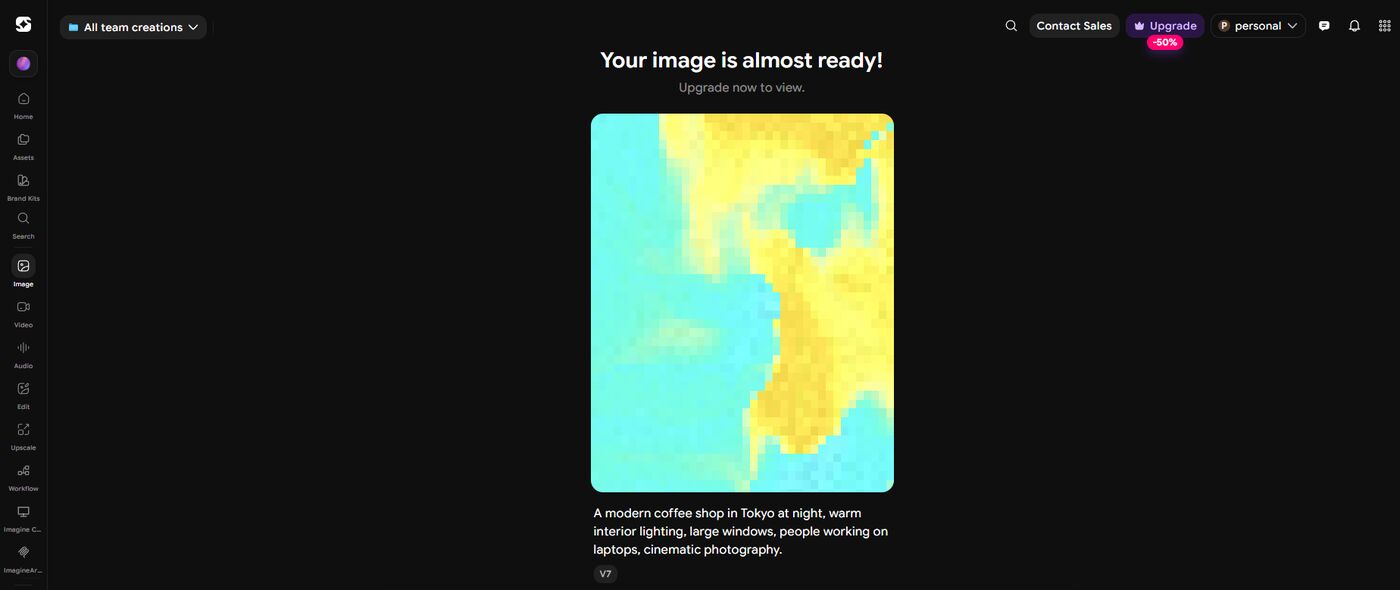
However, when we tried to view the generated result, Midjourney prompted us to upgrade our subscription. This means that, depending on the account and access level, creators may need a paid plan to continue viewing or using generated results.
Where Midjourney Fits Best
Midjourney can be particularly useful for:
- Digital artists
- Illustrators
- Concept artists
- Creative directors
- Visual storytellers
- Creators exploring new artistic styles
The tradeoff is that users who simply want to create a quick marketing visual may not need all of the creative controls available.
Adobe Firefly
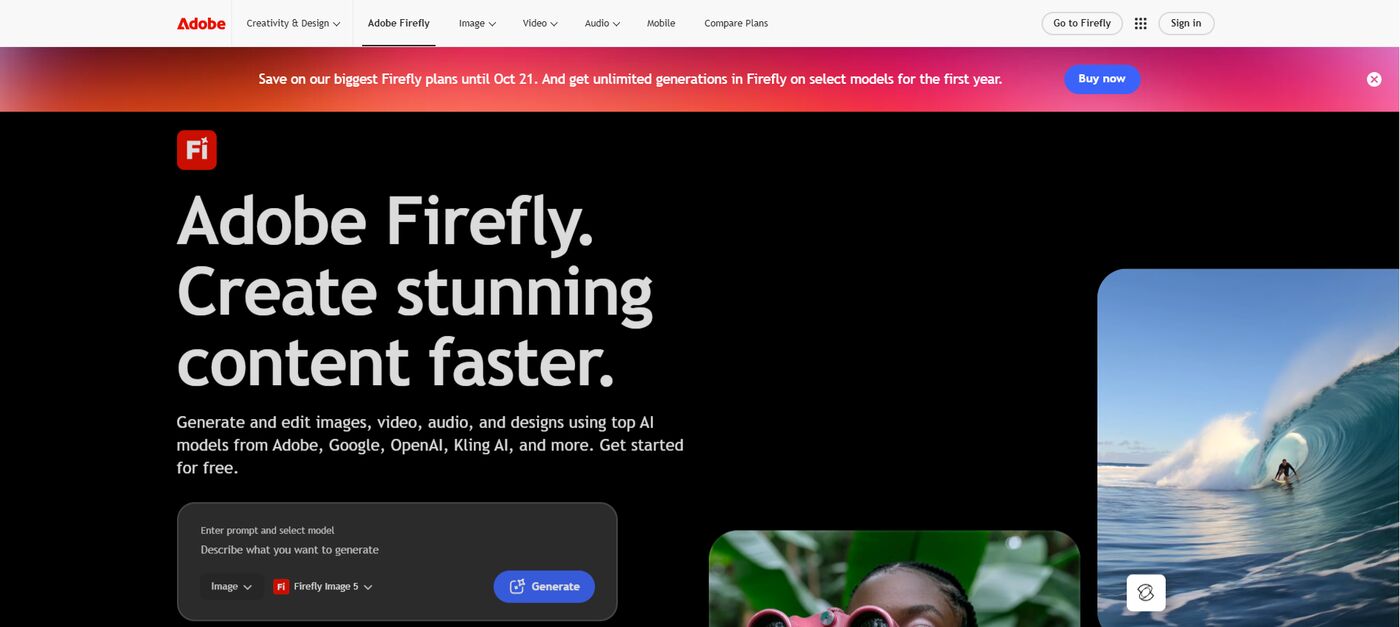
Adobe Firefly takes a different approach by combining generative AI with Adobe’s wider creative ecosystem.
Firefly can generate images from text prompts, edit images using text instructions, and transform existing images into new visual variations. Adobe’s current Firefly platform also includes branding tools for video, vector graphics, image editing, and other creative tasks.
Generate and Edit Images With AI
Firefly isn’t limited to creating an image from a blank prompt.
Its image-to-image tools let you upload an existing photo, sketch, or piece of digital artwork and describe how you want to transform it. You can adjust things such as style, color, lighting, camera angle, and other visual characteristics.
We tested the same prompt, and here’s what we got:
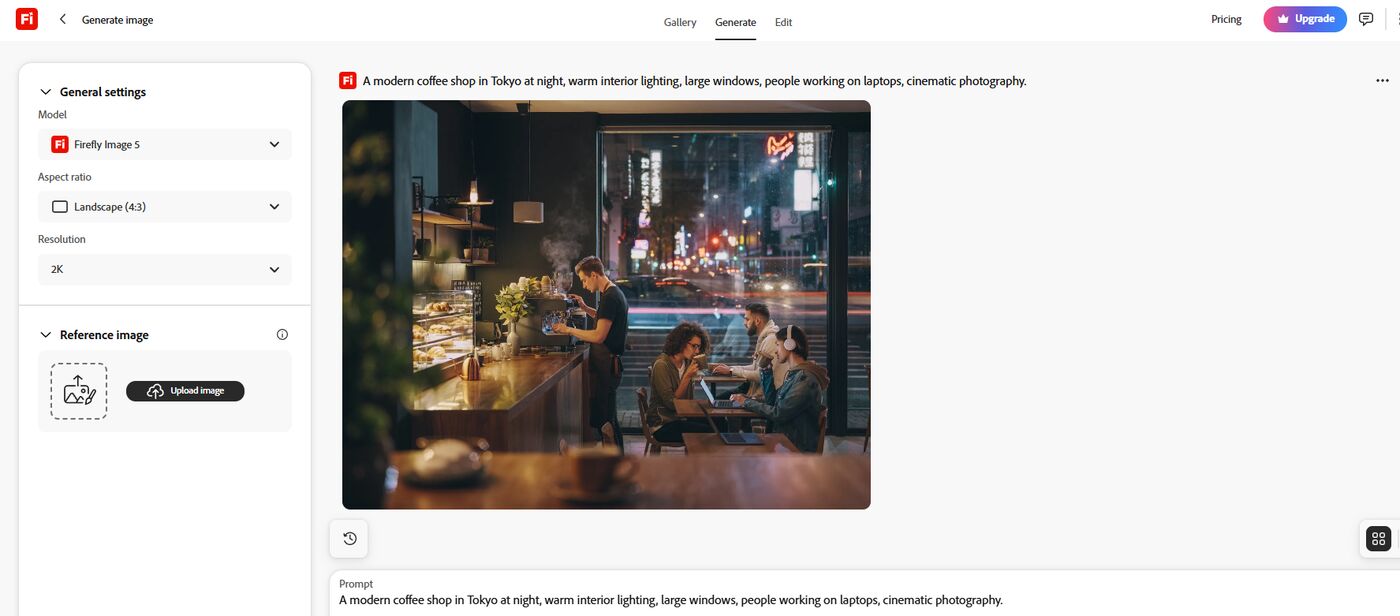
This can be useful when you already have a starting point but want to explore different creative directions.
Professional Creative Workflows
Firefly’s biggest advantage is its connection to Adobe’s creative ecosystem.
After generating an image, creators can continue working with it in tools such as Photoshop and Illustrator. Adobe also provides AI features for editing, compositing, and broader creative production.
This makes Firefly a natural fit for creators who already work extensively with Adobe products.
Commercial Use Considerations
Commercial use is an important consideration when choosing an AI image generator.
Adobe provides specific information about Firefly’s models, features, and intellectual property protections, including product documentation on eligible Firefly features and IP indemnification.
Creators should still review the current terms that apply to the specific Firefly feature and the plan they are using.
Who Is Adobe Firefly Best For?
Firefly is a strong fit for creators who:
- Already use Adobe Creative Cloud
- Need detailed creative control
- Work with image editing
- Need to integrate AI into professional design workflows
- Want to move between AI generation and traditional creative tools
Canva
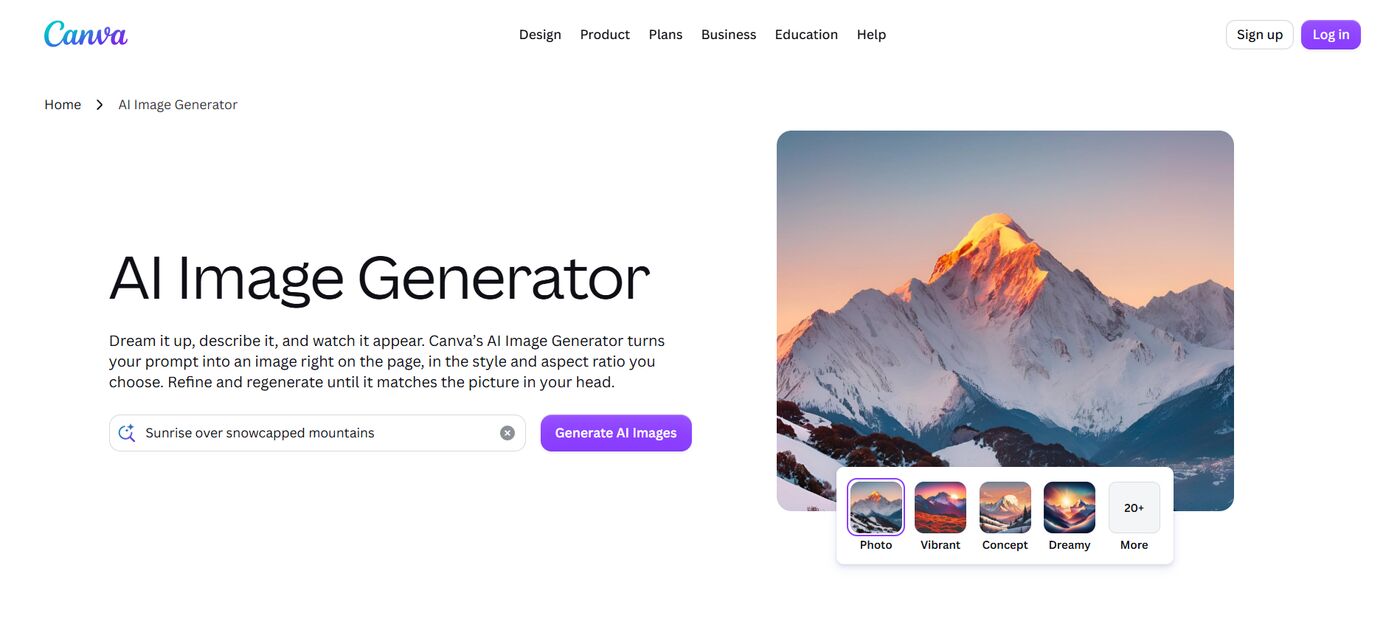
Canva approaches AI image generation from the perspective of everyday design.
Rather than focusing solely on creating an image, Canva integrates AI generation into a broader visual design platform.
Canva’s current AI tools can generate images from prompts, and the results can be imported into the Canva editor for further work.
Generate Images Inside Canva
You can describe the image you want and use Canva’s AI tools to generate it.
Canva also supports different visual styles and image-generation workflows, giving creators a way to explore ideas before adding them to a larger design.
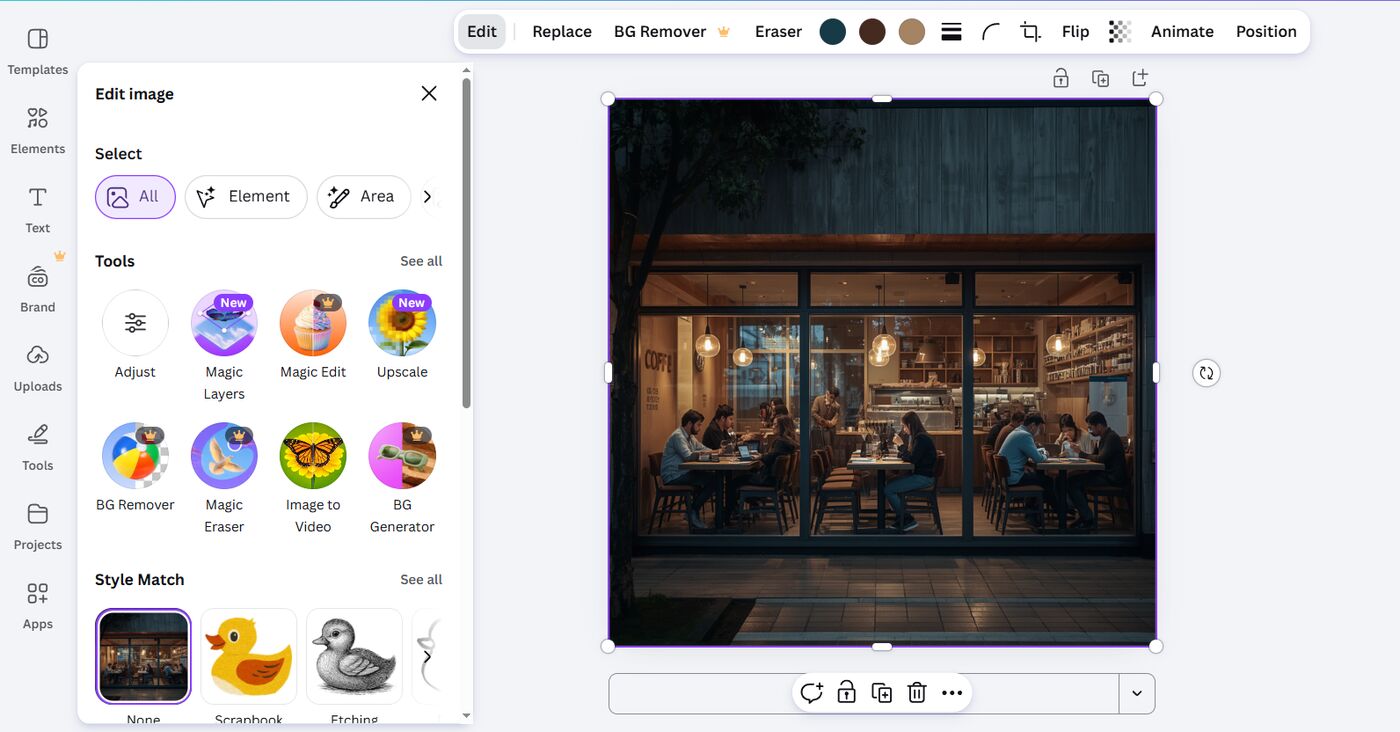
We still used the same prompt, and here’s what Canva produced:
Turn Generated Images Into Content
This is one of Canva’s biggest strengths.
Once an image has been generated, you can continue working with it in Canva by adding text, cropping, resizing, applying effects, combining it with other graphics, and placing it into a larger design.
That makes Canva particularly convenient for creators who regularly produce social media graphics, presentations, advertisements, and other visual content.
Canva AI Goes Beyond Images
Canva has also expanded its AI capabilities beyond standalone image generation.
Its current Canva AI platform can generate editable designs and work across different types of content, allowing users to move from an idea or prompt toward a complete design workflow.
Who Is Canva Best For?
Canva can be a good fit for:
- Social media creators
- Marketers
- Small businesses
- Content teams
- Students
- Non-designers
- Anyone who wants to create visual content quickly
Design.com vs Midjourney vs Adobe Firefly vs Canva
Now that we’ve looked at each platform individually, let’s compare them across the areas that matter most to creators.
Image Quality
All four platforms can produce detailed AI-generated visuals, but the experience is different.
- Design.com focuses on generating usable visuals from straightforward descriptions and producing multiple options for creators to explore.
- Midjourney puts a strong emphasis on artistic exploration, with controls that let users influence stylization, variety, personalization, and other aspects of the output.
- Adobe Firefly combines image generation with detailed editing and image-to-image workflows, making it useful when the creator wants to continue manipulating the visual.
- Canva focuses on integrating generated imagery into a larger design workflow.
Ease of Use
This is where the platforms have noticeable differences.
- Design.com is built around a simple process. You describe your idea, generate several options, choose one, and refine it if necessary.
- Canva takes a similarly accessible approach, particularly for creators already familiar with its editor.
- Firefly provides a relatively accessible starting point but offers more advanced controls as you move deeper into its creative workflow.
- Midjourney gives creators extensive controls and settings, which can be valuable for experimentation but can also make the learning process more involved.
Creative Control
If you want to control every aspect of the generation process, the platforms offer different approaches.
- Midjourney provides settings for stylization, variety, aspect ratio, personalization, and image references.
- Firefly provides controls for transforming existing images, including styles, colors, lighting, camera angles, and image strength.
- Design.com takes a simpler approach. You can control the subject, setting, mood, colors, composition, lighting, and visual style through your description.
- Canva sits somewhere in between, offering prompt-based image generation alongside its broader design tools.
Editing and Customization
Generating an image is only the first step for many creators.
- Firefly is particularly focused on this part of the process, with tools that can transform existing images and continue the creative process through Adobe’s ecosystem.
- Canva also makes it easy to take generated imagery into a broader editor, where you can combine it with text, graphics, photos, and other elements.
- Design.com takes a similar, broader workflow approach. After generating an image, you can use its design tools to turn the visual into social content, marketing materials, website graphics, presentations, and more.
- Midjourney focuses more heavily on continuing to develop and modify the generated image itself through variations, editing, references, and other generation controls.
Speed and Experimentation
AI image generation becomes much more useful when you can quickly test different ideas.
- Design.com is designed around this process. Its AI Image Generator produces multiple visual options from a prompt, allowing you to compare different interpretations and then refine the idea.
- Midjourney also generates image sets and provides tools for variations and further exploration.
- Canva and Firefly allow creators to generate and continue editing within larger creative workflows.
Which AI Image Generator Is Right for You?
There isn’t one AI image generator that fits every creator.
Choose Design.com if you want to:
- Generate images from simple text prompts
- Quickly explore several visual ideas
- Create images for marketing and business content
- Experiment without learning complicated AI tools
- Turn generated images into finished designs
- Keep image generation and other design tasks in one place
Choose Midjourney if you want to:
- Explore AI-generated artwork
- Experiment heavily with visual styles
- Use image references and personalization
- Fine-tune your creative direction
- Spend more time exploring AI-generated visuals
Choose Adobe Firefly if you want to:
- Work within the Adobe ecosystem
- Generate and edit images with AI
- Transform existing images
- Combine AI with professional creative tools
- Continue working in Photoshop, Illustrator, and other Adobe workflows
Choose Canva if you want to:
- Create social media content
- Generate images and immediately place them into designs
- Work with templates and other visual assets
- Create presentations, ads, and marketing materials
- Keep your entire content workflow inside one accessible platform
Final Thoughts
AI image generators have become useful tools for creators who need custom visuals without having to start every project from scratch. Whether you’re creating social media content, website graphics, marketing materials, illustrations, or simply exploring new ideas, these tools can speed up the creative process and give you more options to work with.
For us, Design.com is the top choice. Its AI Image Generator is completely free, easy to use, and lets you generate multiple visual ideas from a simple description. You can refine your prompts, experiment with different directions, and then take your chosen image into Design.com’s broader collection of design tools.
If you want an AI image generator that’s simple, accessible, and completely free to use, Design.com is a strong place to start.